To enable WCM on local development environment below are the steps:
1) Stop portal server
2) From command prompt go to Portal_Home/config.
In my system Portal_Home is C:\Program Files\IBM\WebSphere\PortalServer
3) Run Command WPSconfig.bat configure-wcm-authoring -DPortalAdminPwd=password.
Showing posts with label IBM Lotus Web Content Management. Show all posts
Showing posts with label IBM Lotus Web Content Management. Show all posts
Friday, May 21, 2010

Tuesday, March 16, 2010
Working with Locks in IBM Lotus Web Content Management !!!
As authors contribute content, they might find items that are locked by other
users, because either they are being edited by another user or a draft item has been created.
When a user is editing an item, the item is locked to other users. This means other users
are unable to edit the item until the current user closes the item that they are editing. A
lock symbol is displayed against items that are currently locked.
Administrators can lock and unlock items by selecting them and clicking either the Lock
or Unlock button.
The locking of sites, site areas, taxonomies, and categories is configurable and
is not enabled by default. When locking is enabled, authors cannot create any children
under the locked site or site area. This only applies to items that are located one level
below a locked parent.
When a new draft of a published item is created, a check mark is displayed next to the
published item indicating that no other user can create a draft until the current draft
progresses through a workflow and its state changes to published.
users, because either they are being edited by another user or a draft item has been created.
When a user is editing an item, the item is locked to other users. This means other users
are unable to edit the item until the current user closes the item that they are editing. A
lock symbol is displayed against items that are currently locked.
Administrators can lock and unlock items by selecting them and clicking either the Lock
or Unlock button.
The locking of sites, site areas, taxonomies, and categories is configurable and
is not enabled by default. When locking is enabled, authors cannot create any children
under the locked site or site area. This only applies to items that are located one level
below a locked parent.
When a new draft of a published item is created, a check mark is displayed next to the
published item indicating that no other user can create a draft until the current draft
progresses through a workflow and its state changes to published.
Item Versioning in IBM Lotus Web Content Management !!!!
Lotus Web Content Management a versioning systems with which authors, designers,
and administrators can track the changes that have been made to specific items or to an
entire library, identify versions of libraries by date or tag, and restore them in the future.
Following options are available to define when an item should be versioned.
are available:
versioningStrategy.Default = always | never | manual
versioningStrategy.AuthoringTemplate = always | never | manual
versioningStrategy.Component = always | never | manual
versioningStrategy.Content = always | never | manual
versioningStrategy.PresentationTemplate = always | never |
manual
versioningStrategy.Site = always | never | manual
versioningStrategy.Taxonomy = always | never | manual
versioningStrategy.Workflow = always | never | manual
You can restore a version by viewing an item's version history and selecting a version to
restore.
and administrators can track the changes that have been made to specific items or to an
entire library, identify versions of libraries by date or tag, and restore them in the future.
Following options are available to define when an item should be versioned.
- Manual : A version action can be added to a workflow stage to create a new version
when entering or exiting the workflow stage.
A version action in a draft stage will not trigger versioning, since a draft
cannot have versions.
It is possible to create only one version of the item in a stage. - Always : A version of an item is created each time you save an item, or, if the item is
participating in a workflow, each time the item's state changes to published. - Never: Versioning is never used.
are available:
versioningStrategy.Default = always | never | manual
versioningStrategy.AuthoringTemplate = always | never | manual
versioningStrategy.Component = always | never | manual
versioningStrategy.Content = always | never | manual
versioningStrategy.PresentationTemplate = always | never |
manual
versioningStrategy.Site = always | never | manual
versioningStrategy.Taxonomy = always | never | manual
versioningStrategy.Workflow = always | never | manual
You can restore a version by viewing an item's version history and selecting a version to
restore.
Monday, January 11, 2010
Web Content Management applet failed to load or is unavailable!!
I was working with WCM and receive an alert while creating a new Authoring Template with error message "The Web Content Management applet failed to load or is unavailable. Please contact your administrator immediately."

The solution is Check your installed JRE:
The Web Content Management Authoring Portlet requires one of the following JREs to be installed:
JRE 1.4.1_07,
JRE 1.4.2_03,
JRE 1.4.2_04.
JRE 1.4.2_05.
It worked with 1.4.2_07 for me.
When you are working in Web content management system. Firstly check (JAVA)JRE in your system. if (JAVA)JRE install then update (JAVA)JRE . and no (*JAVA)JRE* install, so Please install (JAVA)JRE in your System.

The solution is Check your installed JRE:
The Web Content Management Authoring Portlet requires one of the following JREs to be installed:
JRE 1.4.1_07,
JRE 1.4.2_03,
JRE 1.4.2_04.
JRE 1.4.2_05.
It worked with 1.4.2_07 for me.
When you are working in Web content management system. Firstly check (JAVA)JRE in your system. if (JAVA)JRE install then update (JAVA)JRE . and no (*JAVA)JRE* install, so Please install (JAVA)JRE in your System.
Saturday, October 24, 2009
Understand and Know the steps to create Site & Site Area in Lotus Web Content Management!!
A Site Framework reflects the structure of your website. It provides you complete information about your website's navigation, menu components and the complete structure. The Site framework consists of Site and Site Areas where Site is the parent for Site Area.
Site : A site consist of several site areas. Hence it is the parent for the site area. You can manage several sites in Web Content Management with one site equals to one WebSite. The Site also define relationships between authoring and presentation template.
Site Area : A site area is the place where contents are grouped together. For every site area we need to define a default content which will be viewed when the page is open. If no default content is mapped the browser will not be able to open that page.
Below are the steps to create a Site:
Now in order to create Site Area follow below steps
You can see the newly created Site and Site Area under navigational hierarchy as shown below.

You can always change the position of Site Areas as and when required.
Site : A site consist of several site areas. Hence it is the parent for the site area. You can manage several sites in Web Content Management with one site equals to one WebSite. The Site also define relationships between authoring and presentation template.
Site Area : A site area is the place where contents are grouped together. For every site area we need to define a default content which will be viewed when the page is open. If no default content is mapped the browser will not be able to open that page.
Below are the steps to create a Site:
- Click on New and Select Site

- Fill the required Site name as Portal School, description and then click on save.
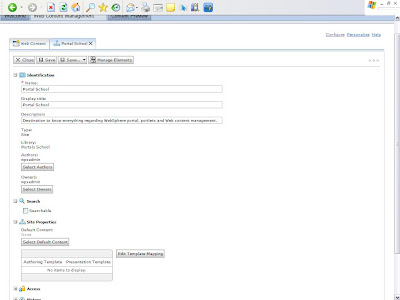


Now in order to create Site Area follow below steps
- Click on New button
- Select Site Area ( same way the Site was selected)
- It will show the list of all available Sites. Select Portal School as the Parent Site for this Site Area.
- Click OK
- In name field enter Lotus Web Content Management
- In Display field also enter Lotus Web Content Management
- Give description as contains all information regarding lotus web content management.
- Check Type will be Site Area
- Click Save.


You can see the newly created Site and Site Area under navigational hierarchy as shown below.

You can always change the position of Site Areas as and when required.
Know how to select existing Library for use in Lotus Web Content Management!!
In order to work with library in WCM first we need to select that library for use in WCM. Follow following steps to select library for WCM
- Go to Web Content Management Authoring screen and then click configure.

- Choose Library Selection
- Add Portal School as shown in below figure.
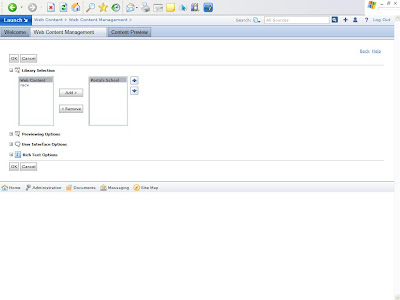
- Click OK


Know how to create a new Library in Lotus Web Content Management!!
Library acts as a distinction between different projects or used as a separator between content and components. Only an administrator can create a new library.
In order to create a new library login into your portal as an administrator:
1) Go to Portal Content
2) Navigate to Web Content libraries
3) Click on Create new Library and input the library name as Portal School and description as Destination for information on Websphere Portal Server, JSR168 Portlets & WCM and language as english. Refer the below screen shot for your reference.
4) Click OK.

Now we need to configure this newly created library for use in WCM. Refer my next post to do so which explains the steps to configure the library.
In order to create a new library login into your portal as an administrator:
1) Go to Portal Content
2) Navigate to Web Content libraries
3) Click on Create new Library and input the library name as Portal School and description as Destination for information on Websphere Portal Server, JSR168 Portlets & WCM and language as english. Refer the below screen shot for your reference.
4) Click OK.

Now we need to configure this newly created library for use in WCM. Refer my next post to do so which explains the steps to configure the library.
Tuesday, October 20, 2009
Understanding Syndication in Lotus Web Content Management.
WCM offers you syndication to replicate data from one WCM location to another. When creating a syndication process, Lotus WCM allows you two choices for your items to be syndicated:
- All Items : This setting will allow you to replicate all elements from one location to another including draft and expired content. This setting is common when syndicating between distributed authoring locations or between an authoring location and a development location.
- All Live Items : This setting only replicates Live Content or the content which is not expired. Live content should be approved content. This setting is useful for production because it only requires live content.
Understanding Workflow in Lotus Web Content Managment.
A content before getting published on the website should follow approval process. Lotus Web Content Management offers workflow to approve and authorize content before getting submitted on to website. You need to create at least two stages, Draft and Published, inside a workflow. The
workflow approves the content quality and assures that content is published in an organization policy manner.
Following are the recommended stages in workflow :
workflow approves the content quality and assures that content is published in an organization policy manner.
Following are the recommended stages in workflow :
- Draft
- Approval
- Published
- Archieved
Wednesday, October 14, 2009
Understanding role of Authoring Templates in IBM Lotus Web Content Management.
In Lotus Web Content Management, content is created by using authoring templates. These templates are forms that contain content and can be grouped into different document types. When it comes to defining the required document types, it is common to hear content owners requesting a document type for every propose. For example, the sales team wants a document type for products, human resources wants document types for career information, and marketing sees a need for a document type for news and company information. From a technical perspective, these requirements fit in fewer authoring templates because they are quite similar essentially.
Instead of creating a new template for every document type on the Web site, templates can differ by page design, such as page layout, page style, and components. Then, you can apply these templates to the many content document types that you create so that the content propose is separated from its layout, making content and presentation flexible. Proper construction of the shell site ensures maximum reuse, flexibility, and performance.
Instead of creating a new template for every document type on the Web site, templates can differ by page design, such as page layout, page style, and components. Then, you can apply these templates to the many content document types that you create so that the content propose is separated from its layout, making content and presentation flexible. Proper construction of the shell site ensures maximum reuse, flexibility, and performance.
Tuesday, October 13, 2009
Key Components of IBM Lotus Web Content Management.
IBM Lotus Web Content management is fully integrated with the WebSphere Portal 6.1. Following are the key components of WCM:
IBM Lotus Web Content Management Server : All request for content are processed by the content server. The content server influences Virtual Member Manager as its user repository for autentication and group membership.
IBM Lotus Web Content Management Content Repository : WCM uses WebSphere Portal’s embedded Apache Derby database as its content repository. But if required you can switch to other supported databases. You can find the list of supported databases at As this list of supported databases is subject to change, refer to the WebSphere Portal 6.1 Information Center for details on the latest supported versions and platforms, which is available at:
IBM Lotus Web Content Management Authoring Portlet : The Authoring Portlet provides you the graphical user interface for interacting with IBM Lotus Web Content Management™. Content creators use the portlet to author content. Content approvers use this same portlet for managing content.Developers use this portlet to create technical assets (for example, Presentation Templates, Workflows, Syndication components, and so forth). The Authoring Portlet allows for very granular user interface security controls.
IBM Lotus Web Content Management Connect Servlet : The Connect Servlet is used to fetch content outside the Portal env. Visior can request a content directly from the Connect Servlet.
IBM Lotus Web Content Management Rendering Portlets : IBM WCM provides two portlets to show your content on Websphere Portal:
1) Local Rendering Portlet: This portlet is used to show content locally on the portal server where the instance of WCM is also live. Hence this portlet can only be used to show content when deployed on Websphere Portal Server which also has WCM running on it.
2) Remote Rendering Portlet: This portlet is used to show content on portal other then instance where IBM WCM is installed. Hence it uses an HTTP connection to Remote WCM content server to fetch content at runtime.
IBM Lotus Web Content Management Server : All request for content are processed by the content server. The content server influences Virtual Member Manager as its user repository for autentication and group membership.
IBM Lotus Web Content Management Content Repository : WCM uses WebSphere Portal’s embedded Apache Derby database as its content repository. But if required you can switch to other supported databases. You can find the list of supported databases at As this list of supported databases is subject to change, refer to the WebSphere Portal 6.1 Information Center for details on the latest supported versions and platforms, which is available at:
IBM Lotus Web Content Management Authoring Portlet : The Authoring Portlet provides you the graphical user interface for interacting with IBM Lotus Web Content Management™. Content creators use the portlet to author content. Content approvers use this same portlet for managing content.Developers use this portlet to create technical assets (for example, Presentation Templates, Workflows, Syndication components, and so forth). The Authoring Portlet allows for very granular user interface security controls.
IBM Lotus Web Content Management Connect Servlet : The Connect Servlet is used to fetch content outside the Portal env. Visior can request a content directly from the Connect Servlet.
IBM Lotus Web Content Management Rendering Portlets : IBM WCM provides two portlets to show your content on Websphere Portal:
1) Local Rendering Portlet: This portlet is used to show content locally on the portal server where the instance of WCM is also live. Hence this portlet can only be used to show content when deployed on Websphere Portal Server which also has WCM running on it.
2) Remote Rendering Portlet: This portlet is used to show content on portal other then instance where IBM WCM is installed. Hence it uses an HTTP connection to Remote WCM content server to fetch content at runtime.
Monday, October 12, 2009
Seperation of Content and Presentation in Web Content Managment System.
The foundation benefit of Lotus Web Content Management is to seperate the content from presentaion. Once the content is fixed you can render your content in many ways of presentaions like :
1) Web Page
2) Pdf document
3) as an RSS Feed
4) audio or video file.
5) download to PDA.
The content is same but the presentation can be selected in the best way of your need. It also shows consistency that if a design part changes still your content remains unaffected. Moreover the content writers dont require to posses HTML knowldege too.
1) Web Page
2) Pdf document
3) as an RSS Feed
4) audio or video file.
5) download to PDA.
The content is same but the presentation can be selected in the best way of your need. It also shows consistency that if a design part changes still your content remains unaffected. Moreover the content writers dont require to posses HTML knowldege too.
What is Web content?
The information that your enterprise offers through Web browser is called as Web Content. It consist of two parts:
1) The content
2) The design or presentation of that content.
Following are the two approaches for creating, managing and publishing Web content
1) Static Web Content
2) Dynamic Web Content
Static Web Content: It is kind of content which is directly embedded into the presentation or design and statically put into the web page. For creating such kind of content we require a person with IT skills who can translate the content into HTML before it is posted to website or portal.
Disadvantages of Static content:
1) Due to its static nature the content is difficult to use and alter.
2) Requires a person with web design and IT knowledge.
Dynamic Web Content: Rather than embedding the information directly together with the design, dynamic Web content treats the content and the presentation of the content as two distinct entities. By separating the Web content from the presentation layer, you can manage and deliver content quickly and efficiently, independent of its presentation. The ability to manage both content and its presentation layer as separate entities is enabled most frequently by
using Web content management systems.
Advantages of Dynamic Web Content:
1) Authors do not face the technical side of web technologies.
2) Reusibility of Content.
3) Organized and manageable.
4) right people is involved in right kind of work.
1) The content
2) The design or presentation of that content.
Following are the two approaches for creating, managing and publishing Web content
1) Static Web Content
2) Dynamic Web Content
Static Web Content: It is kind of content which is directly embedded into the presentation or design and statically put into the web page. For creating such kind of content we require a person with IT skills who can translate the content into HTML before it is posted to website or portal.
Disadvantages of Static content:
1) Due to its static nature the content is difficult to use and alter.
2) Requires a person with web design and IT knowledge.
Dynamic Web Content: Rather than embedding the information directly together with the design, dynamic Web content treats the content and the presentation of the content as two distinct entities. By separating the Web content from the presentation layer, you can manage and deliver content quickly and efficiently, independent of its presentation. The ability to manage both content and its presentation layer as separate entities is enabled most frequently by
using Web content management systems.
Advantages of Dynamic Web Content:
1) Authors do not face the technical side of web technologies.
2) Reusibility of Content.
3) Organized and manageable.
4) right people is involved in right kind of work.
What is Content and Content Management ?
Content can be referred to the information regarding the business. It can be the work that the enterprise does i.e inormation regsrding the enterprise, their services and business operations.
It can also be categorized into videos, audios, documents, discussions and emails etc.
Content Management involves management and storage of above types of contents. It makes information easy to find, use, update, and discard when the time comes.
Objectives of Content Management as defined
"Provide an efficient and secure solution for managing content within the enterprise, including enterprise-wide content storage, access, search, distribution, and retention. This is especially true with the current focus on corporate accountability and regulatory compliance".
It can also be categorized into videos, audios, documents, discussions and emails etc.
Content Management involves management and storage of above types of contents. It makes information easy to find, use, update, and discard when the time comes.
Objectives of Content Management as defined
"Provide an efficient and secure solution for managing content within the enterprise, including enterprise-wide content storage, access, search, distribution, and retention. This is especially true with the current focus on corporate accountability and regulatory compliance".
Sunday, October 11, 2009
Introduction to IBM Lotus Web Content Management v 6.1
In this competitive world, it is important to make your business visible in your respective market place. With the existence of the internet, the web has become a medium to visible your business information globally. Globally organizations use the internet to deliver their presence from basic organization and company information to e-commerce.
IBM Lotus Web Content Management provides a sophisticated Web content
management tool and platform that is designed to accelerate the delivery and
management of critical business information. It enables a collaborative approach to content creation for individuals and teams. It allows for approval of processes, management, and assets. Lotus Web Content Management is an extremely powerful and sophisticated tool that is remarkably easy to use.
IBM Lotus Web Content Management provides a sophisticated Web content
management tool and platform that is designed to accelerate the delivery and
management of critical business information. It enables a collaborative approach to content creation for individuals and teams. It allows for approval of processes, management, and assets. Lotus Web Content Management is an extremely powerful and sophisticated tool that is remarkably easy to use.
Subscribe to:
Posts (Atom)